
Android and Laptop Download Setup Using MTN, Glo, VPN and Download Managers

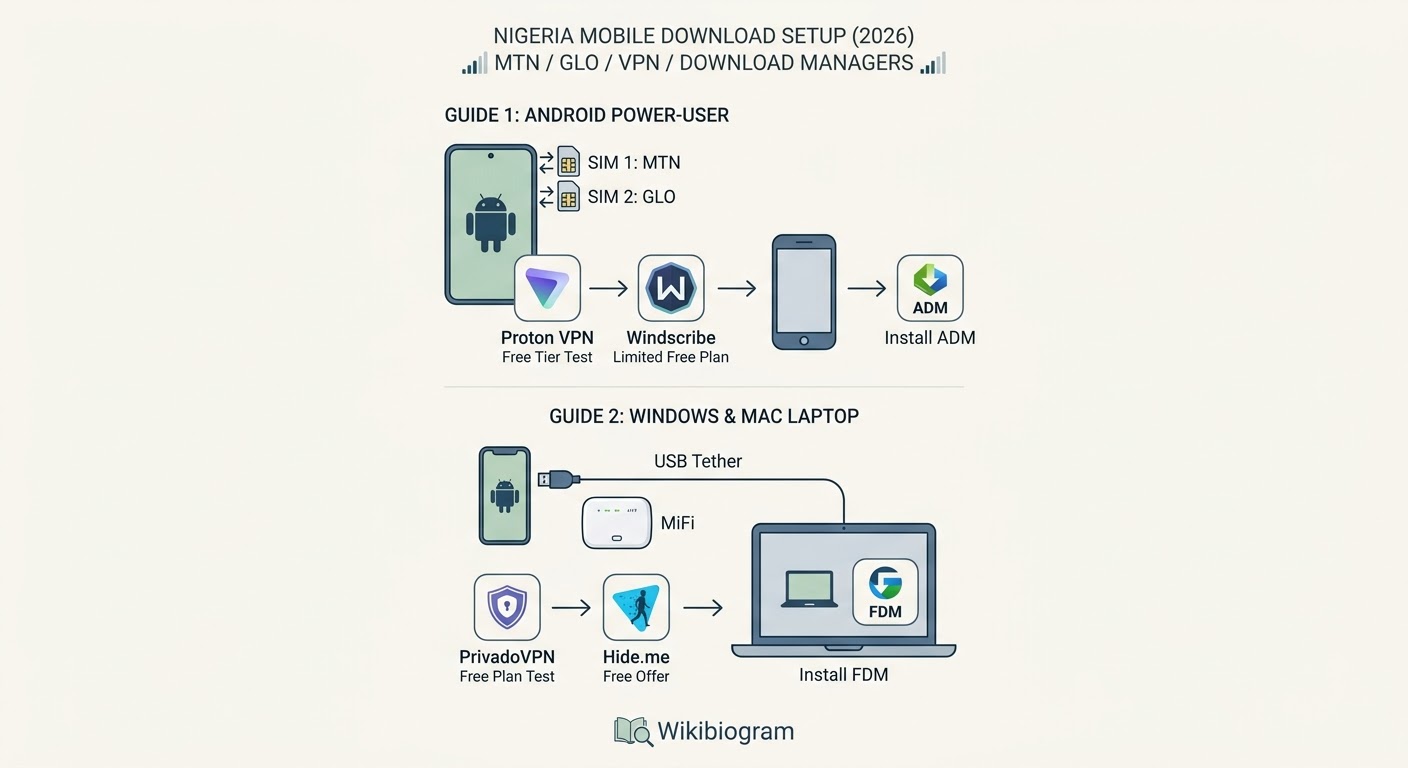
Here are two separate, detailed setups tailored to different device configurations, with VPN options, SIM strategies and download-manager settings.
The goal is to create a more consistent downloading setup when using mobile networks such as MTN or Glo. Actual speeds can still vary depending on signal strength, network congestion, server capacity and the terms of your mobile plan.
Guide 1: Android Mobile Power-User Setup
If you are downloading large files, movies or game files directly to an Android phone, relying on a single network can put you at the mercy of local congestion.
The Android Dual-SIM Strategy
One possible setup is to place MTN in SIM 1 and Glo in SIM 2.
The idea is to use MTN during periods when it provides better performance in your location and switch to Glo when its available data packages or network conditions are more suitable.
For example, a user could compare daytime MTN performance with Glo’s available night plans rather than automatically assuming one network is always faster.
Free Android VPN Options
Proton VPN: Its free tier can be useful for testing whether a different network route performs better. Availability, server selection and performance can vary.
Windscribe: Its free plan provides a limited monthly data allowance, making it another option for users who want to test VPN routing without immediately paying for a subscription.
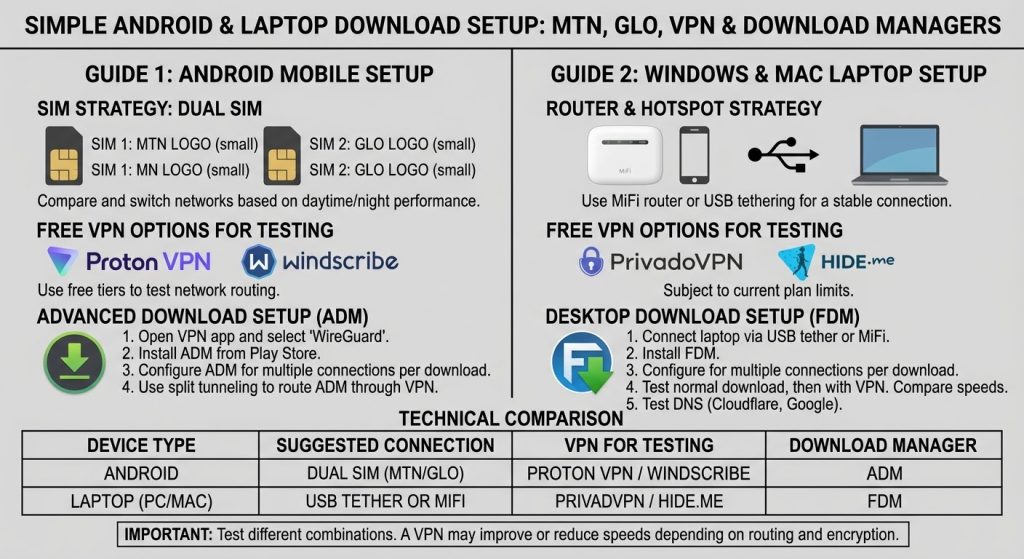
Android Advanced Download Setup
- Open your VPN application and select WireGuard if supported.
- Install ADM from the Google Play Store.
- Configure ADM to use multiple download connections where the server allows them.
- If your VPN supports split tunnelling, you can route only the download manager through the VPN while leaving other apps on the normal connection.
This can prevent ordinary social media activity from unnecessarily passing through the VPN.
Guide 2: Windows and Mac Laptop Setup
Downloading large software patches, ZIP archives or ISO files through a mobile hotspot can produce inconsistent performance.
Router and Hotspot Strategy
A dedicated 4G/5G MiFi router can provide a more stable connection than relying on a phone hotspot. USB tethering from an Android device can also provide a direct connection between the phone and laptop.
Free VPN Options for Testing
PrivadoVPN: Its free plan can be used for testing VPN routing, subject to its current plan limits.
Hide.me: Its free offering provides another option for testing whether VPN routing changes download performance.
Desktop Download Setup
- Connect the laptop through a stable USB tether or MiFi router.
- Install Free Download Manager.
- Configure multiple connections per download where supported.
- Test a normal download first.
- Activate the VPN and repeat the same test.
- Compare the actual download speeds rather than assuming that the VPN will automatically be faster.
- If necessary, test DNS providers such as Cloudflare or Google DNS.
Technical Comparison
| Device Type | Suggested Connection | VPN for Testing | Download Manager |
|---|---|---|---|
| Android | Dual-SIM or strongest available network | Proton VPN / Windscribe | ADM |
| PC/Laptop | USB-tethered Android or MiFi | PrivadoVPN / Hide.me | FDM |
The most important point is to test different combinations. A VPN can sometimes improve performance if the normal route is congested or subject to traffic management, but it can also reduce speed because encrypted traffic must travel through an additional server.