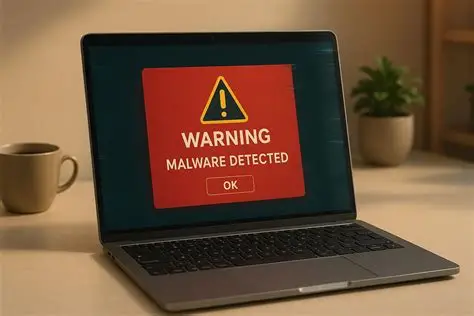
Malware can cause anything from annoying pop-ups and slow performance to serious problems involving stolen passwords and personal information. Knowing the warning signs can help you respond before the problem becomes worse.
Common Signs of Malware
Some of the most common signs that a computer has been infected with malware include dramatically slowed performance, unexpected changes to the default website or search engine, new unwanted toolbars, and pop-up advertisements that appear even when the browser is not open.
Other warning signs can include unfamiliar applications, browser redirects, unusual network activity, unexpected security warnings, or programs starting without your permission.
One symptom alone does not always prove that a computer has malware, since slow performance can also be caused by insufficient storage, outdated software, or hardware problems. However, several unusual symptoms appearing together deserve attention.
Disconnect the Computer From the Internet
If you notice several suspicious symptoms, the first order of business is to disconnect the computer from the Internet, especially if you suspect an active malware infection.
Disconnecting the computer can reduce the opportunity for malicious software to communicate with external servers, transmit information, or spread to other devices on the same network.
For a wired connection, unplug the Ethernet cable. For Wi-Fi, disconnect the computer from the wireless network.
Run a Full Malware Scan
Next, run a full-system malware scan using your operating system’s built-in malware protection. On Windows computers, this can be accessed through the Windows Security settings.
You can also use a reputable malware scanner such as Malwarebytes for an additional layer of protection. Different security tools may identify different threats, so using a trusted second-opinion scanner can sometimes be useful.
Allow the scan to run uninterrupted until it completes. Some malware can be deeply embedded in the operating system, meaning a full scan may take considerably longer than a quick scan.
Remove Detected Threats
After the scan has finished, delete or isolate any malicious files detected by the security software according to its recommendations.
Reboot the computer after removing the threats, then run another scan to make sure the problem has been dealt with.
If the security software cannot remove an infection or the computer continues behaving suspiciously, professional assistance may be necessary.
Protect Your Important Accounts
If you believe malware may have recorded keystrokes or stolen login credentials, change passwords for important accounts from another trusted device.
Pay particular attention to email, banking, social media, cloud storage, and other accounts containing sensitive information. Where available, enable two-factor authentication to add another layer of protection.
Be wary of downloading software from suspicious websites and avoid opening attachments from unknown senders, as these are among the common ways malware can enter a computer.
Keeping the operating system, browser, applications, and security software updated can also reduce exposure to known security vulnerabilities.