
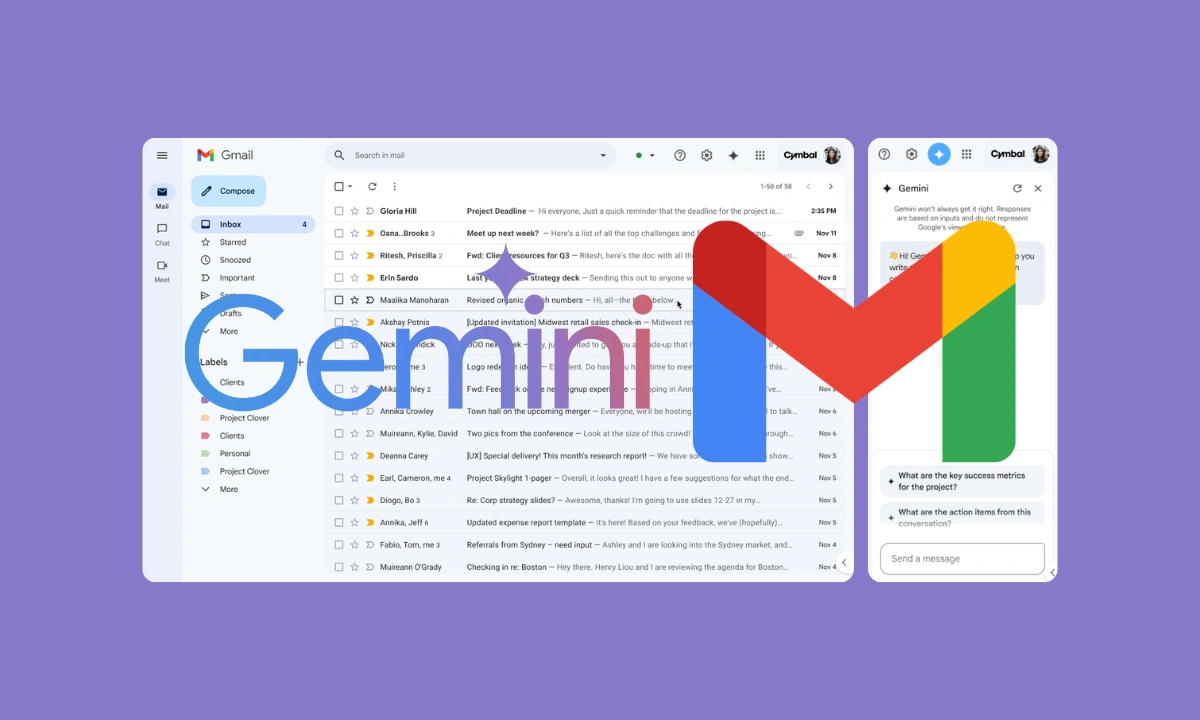
According to facts gathered by our team, Google rolled out fresh conversational voice tools inside Gmail, Docs and Keep that make the apps easier to drive hands-free.
The plain truth is you can now speak natural commands to draft replies, organise notes or edit documents without tapping every menu.
The update sits inside the latest Gemini layer, so first confirm your Google account has Gemini access turned on.
Open the Gmail app on your phone, then tap the Compose button. Look for the microphone or Gemini icon near the toolbar and tap it.
Speak a clear instruction such as, “Draft a short reply confirming the meeting time for tomorrow afternoon.” Review the generated text, then edit any part by voice or by hand before sending.
As it stands right now, the same voice layer works inside Google Docs. Open a document, tap the tools menu and select the Gemini or voice option.
Ask it to summarise the last three paragraphs or rewrite a section in simpler language.
For Keep, open a new note and use the mic to capture a shopping list or meeting points. The system transcribes and organises the text automatically.
But here is where it gets interesting: you can chain commands across the apps, so a note created in Keep can be pulled into a Docs draft with one spoken request.
Keep the Google app suite updated from the store and grant microphone permission if the voice button stays grey.
Test with short phrases first, then move to longer instructions. If the response feels off, rephrase the request and try again.
Clear the app cache under phone settings if the Gemini panel fails to appear.
These voice steps cut the time spent on routine writing and keep Gmail, Docs and Keep moving at the pace the new features allow, especially when hands-free control is more convenient than working through menus manually.