How to Remove Text from an Image: 4 Best Tools for Clean, Professional Visuals in 2026
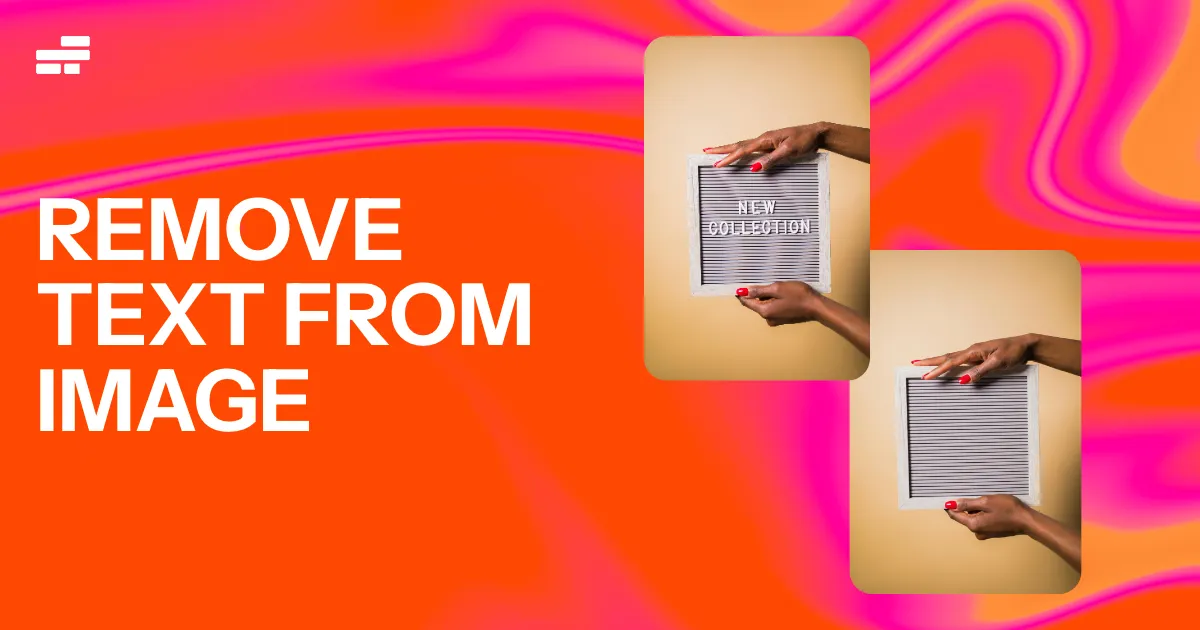
Removing unwanted text from a photo used to mean opening Photoshop, spending several minutes with the Clone Stamp tool and hoping the final result did not look edited. Today, AI-powered image editors have made the process much faster.
Whether it is an old date stamp, unwanted writing, a misplaced caption or text sitting across part of an image, several online tools can now remove it with just a few brush strokes.
The important part is choosing a tool that can rebuild the area naturally rather than simply blurring the writing.
Why Removing Text From Photos Can Be Tricky
Text may look simple to erase, but removing it cleanly is not always straightforward.
A few letters sitting against a plain sky can disappear almost perfectly. The same text placed over someone’s face, patterned clothing, a building or a detailed background is much harder to reconstruct.
Once the letters are removed, the editing tool has to work out what was originally behind them. Good AI removal tools analyse nearby pixels, textures, colours and shapes before filling the empty area.
That is why the best results usually come from tools that can intelligently reconstruct the background rather than simply painting over the text.
4 Tools That Can Remove Text From Images
Here are four useful options worth considering in 2026, depending on whether you want speed, simplicity or more control.
1. BeautyPlus
BeautyPlus is a convenient option for users who want to clean up an image without learning complicated photo-editing software.
Its object-removal features allow users to brush over unwanted elements and let the AI reconstruct the area underneath. This can work particularly well for small pieces of text, dates and other distractions.
How to use it:
- Open the BeautyPlus online editing tool and upload your image.
- Select the object or removal tool.
- Adjust the brush size so you can accurately cover the unwanted text.
- Paint over the text you want to remove.
- Apply the removal effect and inspect the result.
- Make another pass if traces of the lettering remain.
- Download the finished image.
For simple edits, this approach can take only a few seconds.
2. Pixelcut
Pixelcut is another strong choice for quick image cleanup, particularly for social media creators, online sellers and anyone who does not want to deal with complicated editing software.
The interface is designed around straightforward AI-powered editing, making it relatively easy to remove unwanted objects or markings from a photograph.
How to use it:
- Open Pixelcut’s image editor.
- Upload the photo you want to clean.
- Choose the retouch or removal feature.
- Adjust the brush size.
- Paint over the unwanted text.
- Let the AI process the selected area.
- Check the result and repeat the process if necessary.
- Download the finished image.
Pixelcut is particularly useful when speed matters more than having dozens of advanced editing controls.
3. Canva
Canva is a good option for people who are already using the platform to create social media graphics, presentations, adverts and other visual content.
However, there is an important distinction: Canva’s text-related tools are not all designed to erase text that is permanently embedded in a photograph. For removing text from an existing image, you need to use an appropriate image-editing or Magic Eraser-style feature available to your Canva plan and editor version.
How to use it:
- Open Canva and create or open a design.
- Upload the image containing the unwanted text.
- Select the image and open the image-editing options.
- Choose the available erasing or object-removal tool.
- Adjust the brush size.
- Paint over the unwanted text.
- Allow Canva to generate the replacement background.
- Review the image before exporting it.
Canva’s biggest advantage is that you can remove the unwanted element and immediately continue designing around the cleaned-up image.
4. NoteGPT
NoteGPT has expanded beyond its original focus on AI-powered text and video tools and also provides image-related utilities.
Its image editing features can be useful when the main goal is to quickly remove unwanted text without opening a heavyweight desktop application.
How to use it:
- Open the image editing section.
- Select the text-removal feature.
- Upload or add your image.
- Mark the text you want removed.
- Start the AI removal process.
- Wait for the edited version to be generated.
- Inspect the result carefully.
- Download the image when you are satisfied with the cleanup.
The quality of the result can depend heavily on how much detail sits behind the text, so images with complicated backgrounds may require more than one attempt.
Which Text-Removal Tool Should You Choose?
| Tool | Best for | Ease of use | Main advantage |
|---|---|---|---|
| BeautyPlus | Quick photo cleanup | Easy | Fast AI-assisted removal |
| Pixelcut | Product and social images | Easy | Simple retouching workflow |
| Canva | Creators and designers | Easy | Editing and design in one place |
| NoteGPT | Fast online cleanup | Easy | Convenient browser-based editing |
For a quick one-off edit, BeautyPlus or Pixelcut may be the easiest starting points. Canva makes more sense if the image is already part of a larger design, while NoteGPT can be useful when you want a straightforward browser-based solution.
When Removing Text From an Image Makes Sense
Updating Old Product Photos
Online sellers often have product images covered with outdated prices, seasonal promotions or old campaign messages.
Removing those elements can make it possible to reuse an existing image for a new design rather than starting from scratch.
For example, a product photo carrying an old “50% OFF” label may still be perfectly usable once the outdated promotional text has been removed.
Cleaning Up Personal Photos
Old photographs sometimes contain camera-generated dates and timestamps in one corner.
Those orange or white date stamps were common on older digital cameras, and removing them can make personal photographs look much cleaner while preserving the original image.
Preparing Social Media Graphics
Creators sometimes need to clean up their own graphics before turning them into a new post, thumbnail or promotional design.
Removing unwanted text can provide a cleaner canvas for adding updated captions, branding or other information.
Fixing Design Mockups
Designers working with their own mockups may also need to remove placeholder words, outdated labels or temporary text before presenting a revised version to a client.
AI removal tools can make these small corrections considerably faster.
How to Get Better Results When Removing Text
The tool you choose is only part of the equation. The way you select the text can also affect the final image.
Use a smaller brush for detailed areas. A huge selection can remove more of the surrounding image than necessary.
Zoom in before editing. This makes it easier to cover the letters accurately without touching nearby details.
Remove complicated text in sections. If a large sentence crosses a person’s face or another detailed object, removing everything at once may produce a poor result. Smaller selections can give the AI more manageable areas to reconstruct.
Check the image at full size. An edit may look perfect in a small preview but reveal repeating patterns, strange textures or blurry areas when viewed at its original resolution.
Try another pass when necessary. Some tools leave faint traces after the first attempt. A second, more carefully selected pass can often improve the result.
What About Removing Watermarks?
Removing a watermark is technically similar to removing other text, but there is an important legal and ethical distinction.
If the watermark belongs to another photographer, designer, stock-image provider or copyright holder, removing it does not give you permission to use the underlying image.
These tools are best used on images you created yourself, images you have permission to edit, or material whose licensing terms allow the modification.
AI Has Made Photo Cleanup Much Faster
Removing unwanted writing from an image no longer has to involve complicated desktop software or hours of manual editing.
Tools such as BeautyPlus, Pixelcut, Canva and NoteGPT can handle many simple cleanup jobs directly from a browser. The best choice depends on the type of image, how complicated the background is and how much control you want over the final result.
For straightforward text on a relatively simple background, the difference can be dramatic: a few careful brush strokes can turn a cluttered image into a clean visual ready for a website, social media post, presentation or personal archive.