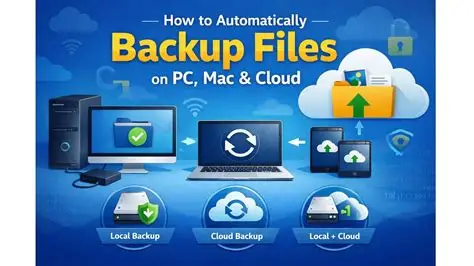
Cloud backup can help protect important documents and digital files if your phone or computer is lost, damaged, stolen, or affected by a hardware failure. Setting up a basic cloud backup system does not have to be complicated, especially if you start with the files that would be most difficult to replace.
Organize the Documents First
Identify the documents that need to be backed up first, then organize them into a single folder so it is easier to set up cloud synchronization.
Some documents should be prioritized over others depending on how important they are and whether they can be recreated if they are lost.
Start with files that are difficult to replace, such as official documents, important personal records, work-related documents, certificates, receipts, and other files you would struggle to recover.
You can then organize personal documents, photos, and less important files into separate folders.
Choose a Cloud Storage Provider
Choose a cloud storage provider based on the devices you use most.
Some cloud storage services integrate particularly well with specific ecosystems. For example, Google Drive works conveniently across Android and Google services, iCloud integrates closely with Apple devices, while OneDrive works closely with Windows and Microsoft services.
The amount of free storage varies depending on the provider and plan, so check the current storage allowance before moving a large collection of files.
If you need more space, most major cloud storage services provide paid plans with additional storage.
Install the Cloud Storage App
Install the application for your chosen cloud storage provider on your computer and preferred mobile device.
Log in to your account and set up the folder you want to synchronize with the cloud storage service.
Once synchronization is properly configured, new documents and digital photos added to the selected folder can be automatically uploaded to the cloud without requiring you to manually upload every file.
Make Sure Your Files Are Actually Backed Up
Do not assume that a file has been backed up simply because the cloud storage application is installed.
Check the synchronization status and confirm that important documents appear in your cloud account. You can also open a few files from another device or through the cloud service’s website to make sure they are accessible.
This is particularly important for documents that you cannot afford to lose.
Check Your Backup Regularly
Double-check your documents and photos every few months to make sure synchronization is still working correctly.
Applications can stop syncing because of account problems, storage limits, changed settings, software errors, or an expired subscription.
It is also worth keeping an additional copy of extremely important documents rather than relying on a single cloud account. For critical files, having another backup stored securely on an external drive or another trusted location provides additional protection if you ever lose access to your primary cloud account.
A reliable backup routine is not just about uploading files once; it is about making sure those files remain accessible and protected over time.